Announcements
The Announcements section allows you to send written messages directly to students enrolled in your courses. You can access it by clicking Announcements in the sidebar. Announcements are a course-level communication tool, each announcement you create is tied to a specific course, and only the students enrolled in that course will receive it.
The Announcements List
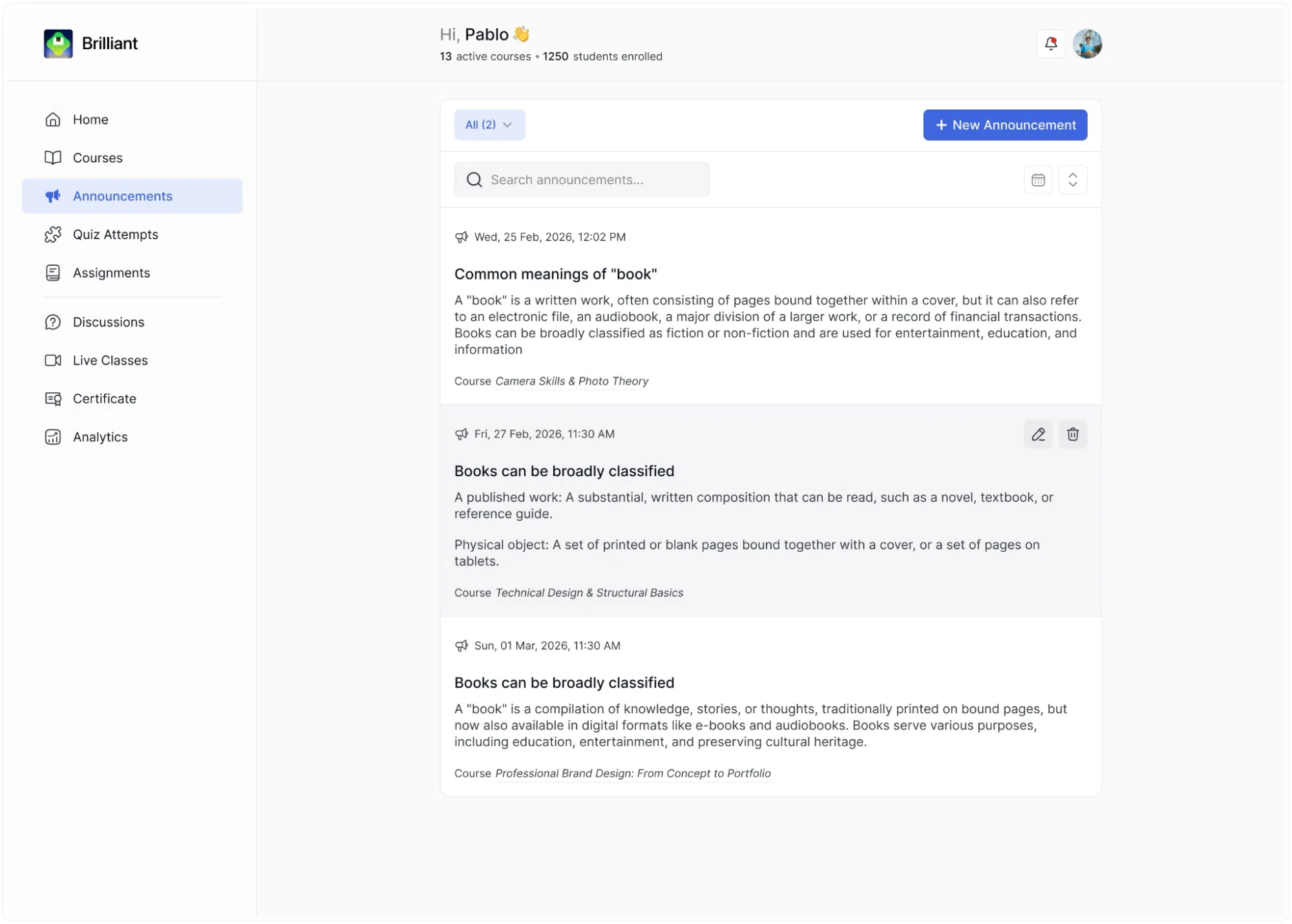
When you open the Announcements page, you will see a list of all announcements you have previously published. Each entry in the list displays the following:
- The date and time the announcement was published.
- The announcement title in bold.
- A short excerpt or the full body text of the announcement.
- The name of the course the announcement was sent to, displayed below the message text.
Hovering over an announcement reveals two icons on the right side of the entry: a pencil icon to edit the announcement, and a trash icon to delete it.
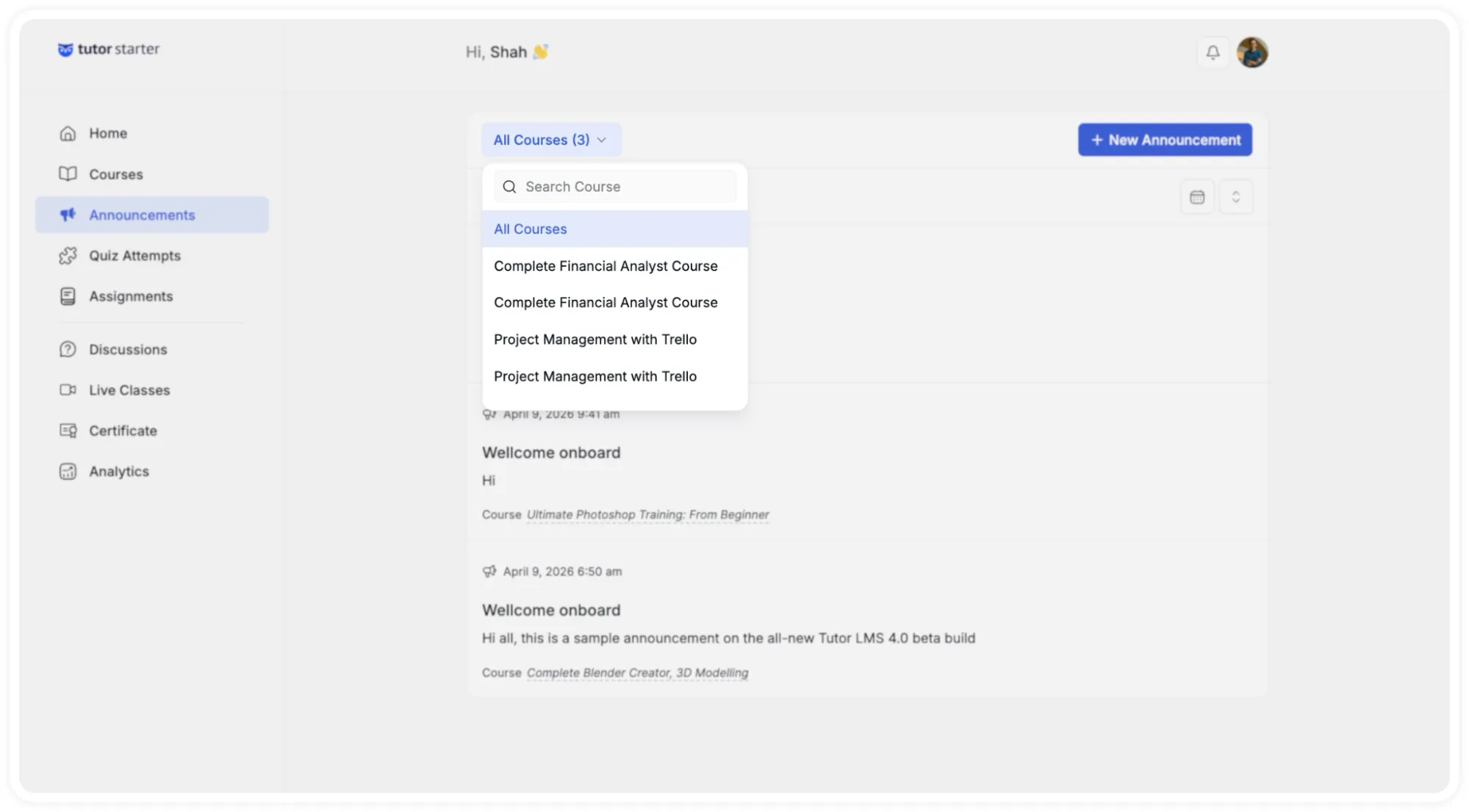
At the top of the list, a course filter dropdown that lets you narrow the list to show announcements from a specific course only. Clicking this dropdown opens a searchable list of your courses, so you can quickly filter announcements to a single course if needed.
The filter dropdown menu also includes a search bar, allowing you to search through your announcements by keyword.
To the right of the search bar, a calendar icon and a sort control let you filter announcements by date range or change the order in which they are displayed.
Creating a New Announcement
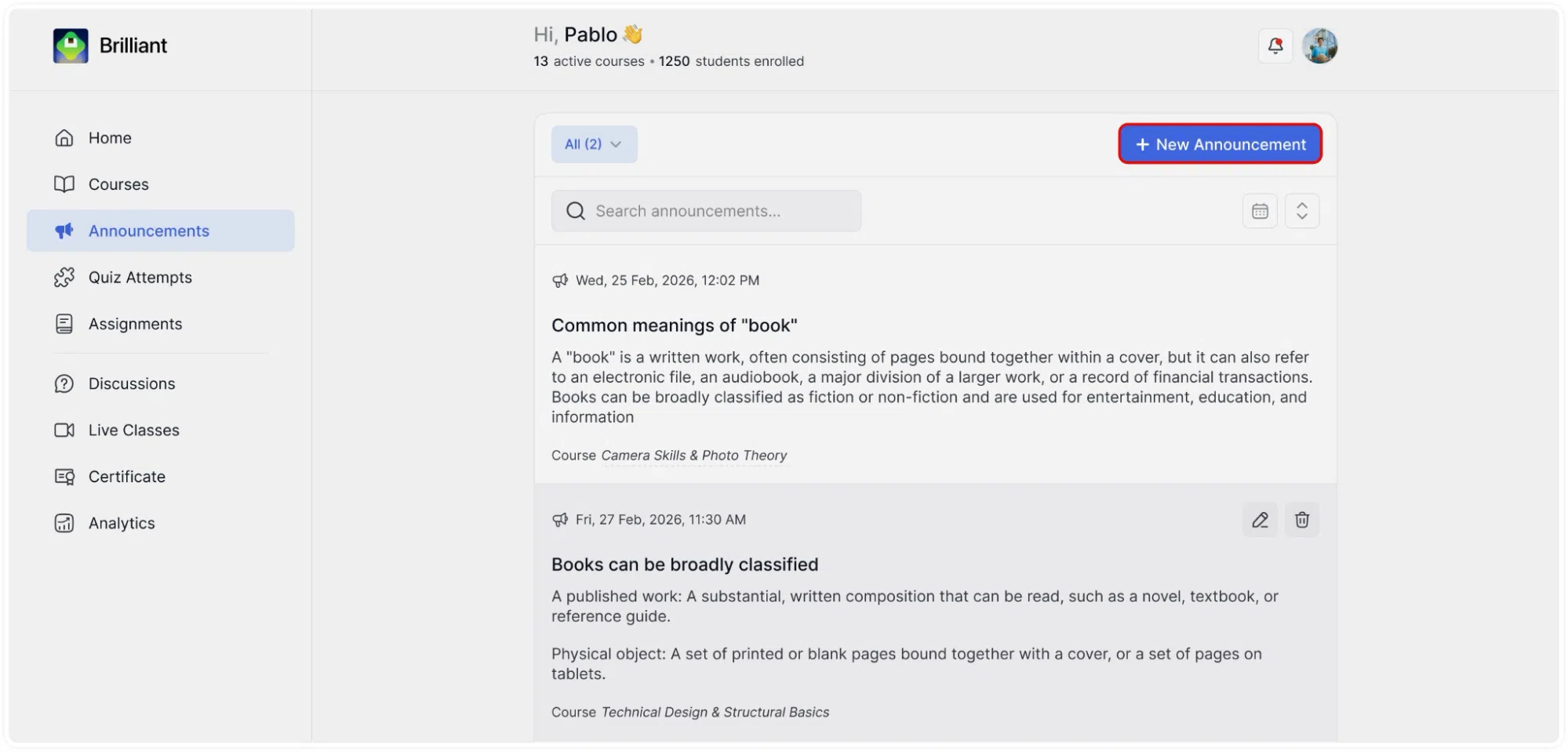
To create a new announcement, click the + New Announcement button in the top-right corner of the page. This opens the Create Announcement modal over the current page.
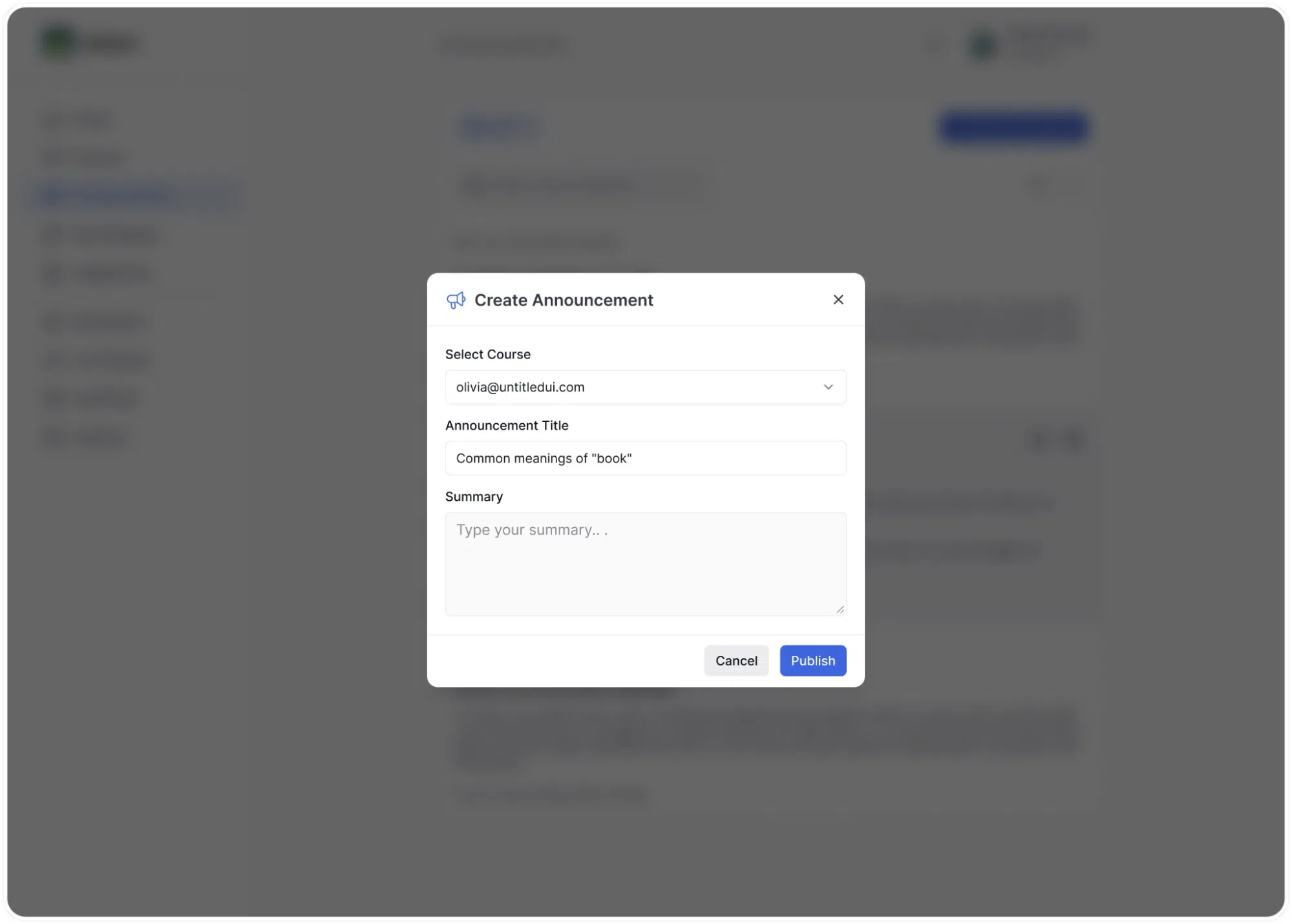
The modal contains three fields:
1. Select Course: A dropdown menu that lists all your courses. Click the dropdown and select the course whose students you want to reach. Only students currently enrolled in the selected course will receive the announcement. This field must be filled in before you can publish.
2. Announcement Title: A text field where you enter the subject line or title of your announcement. This is what students will see as the heading of the message.
3. Summary: A larger text area where you write the body of your announcement, the actual message content.
At the bottom of the modal, two buttons are shown:
- Cancel: closes the modal without saving or sending anything.
- Publish: sends the announcement immediately to all students enrolled in the selected course.
Once you click Publish, the announcement will appear in your Announcements list and will be visible to the relevant students on the platform.
When to Use Announcements
Announcements are suited for any situation where you need to communicate the same message to all students in a course at once. Common uses include:
- Letting students know that new lesson content or resources have been uploaded.
- Sharing a change to the course schedule or a live class time.
- Providing clarification on a topic that multiple students have asked about.
- Sending a general update or note of encouragement during the course.
Each announcement is course-specific, so if you need to reach students across multiple courses, you will need to create a separate announcement for each course.