Discussions
The Discussions section brings together all student questions and lesson comments from across your courses in one place. You can access it by clicking Discussions in the sidebar.
Two Discussion Types:
The Discussions page is divided into two tabs at the top:
- Q&A: Contains questions that students have posted in the course Q&A threads. These are typically questions about course content, lessons, or specific topics.
- Lesson Comments: Contains comments that students have left directly on individual lesson pages within a course.
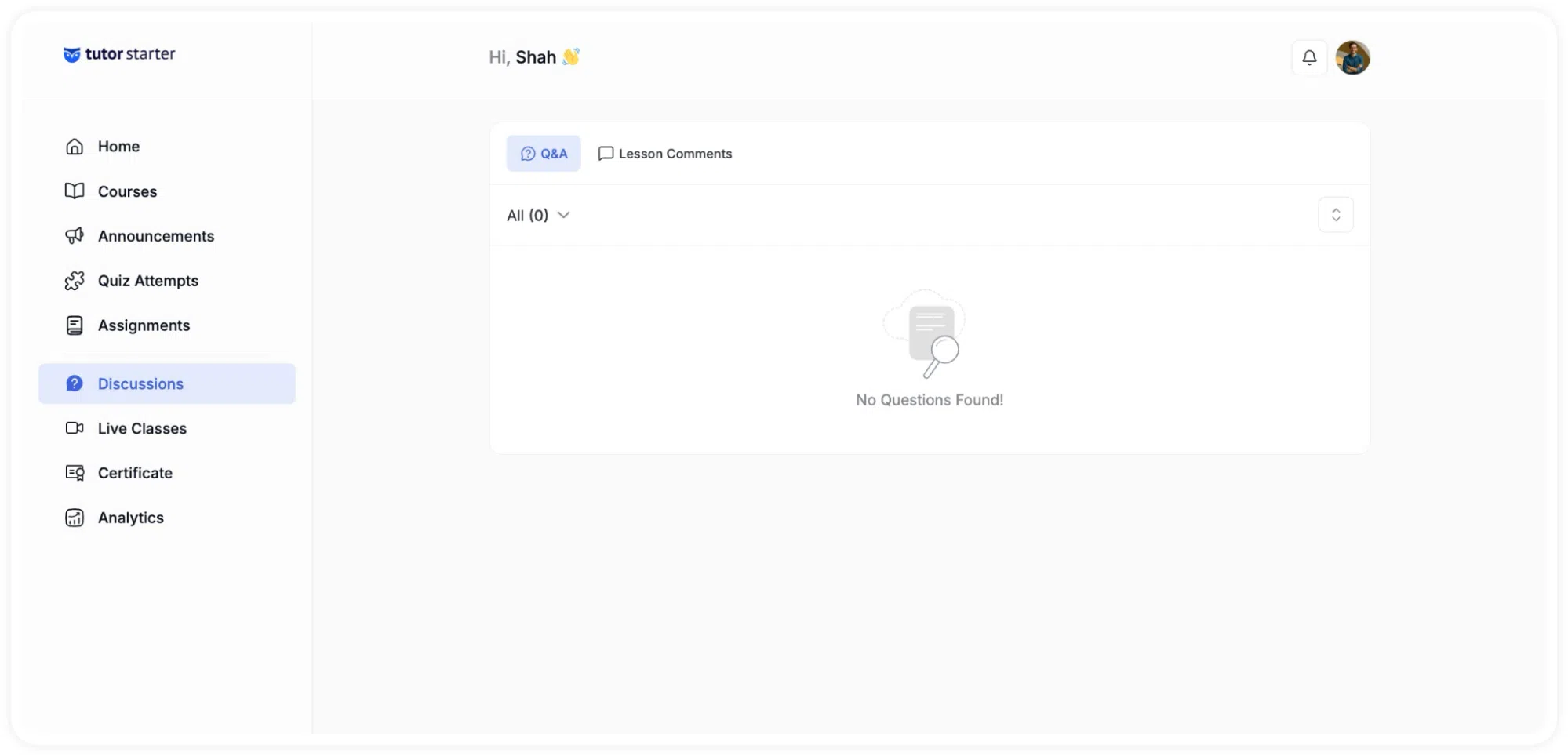
Both tabs display discussions from all your courses in a single unified list, so you do not need to open each course individually to check what students have been writing.
Lesson Comments
The Lesson Comments tab displays comments that students have left directly on individual lesson pages, separate from the course-level Q&A threads. These are typically shorter, more specific observations or questions tied to a particular moment in a lesson rather than a broader course topic.
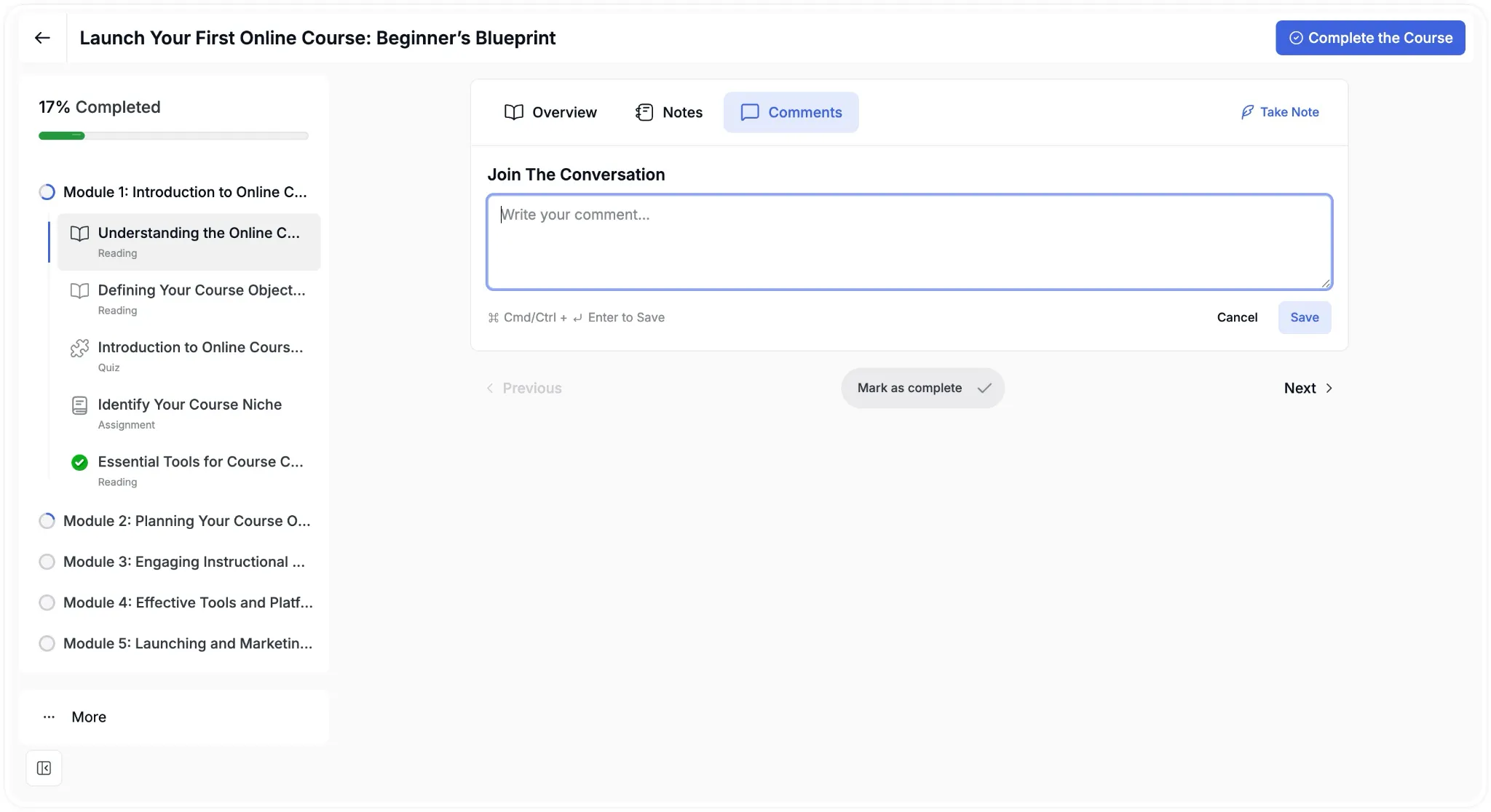
What each comment shows:
Each comment in the list includes:
- The student’s profile photo and name
- The lesson name and the course it belongs to
- The full comment text
- A reply count icon showing how many responses the thread has received
- A timestamp showing how long ago the comment was posted
- A small avatar indicator when other users have already replied to the thread
Replying from the list view
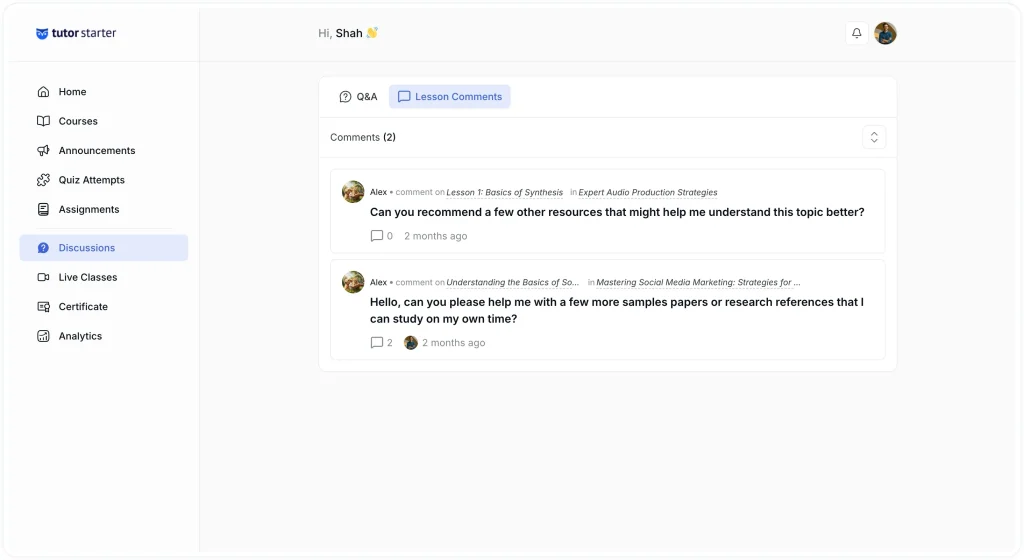
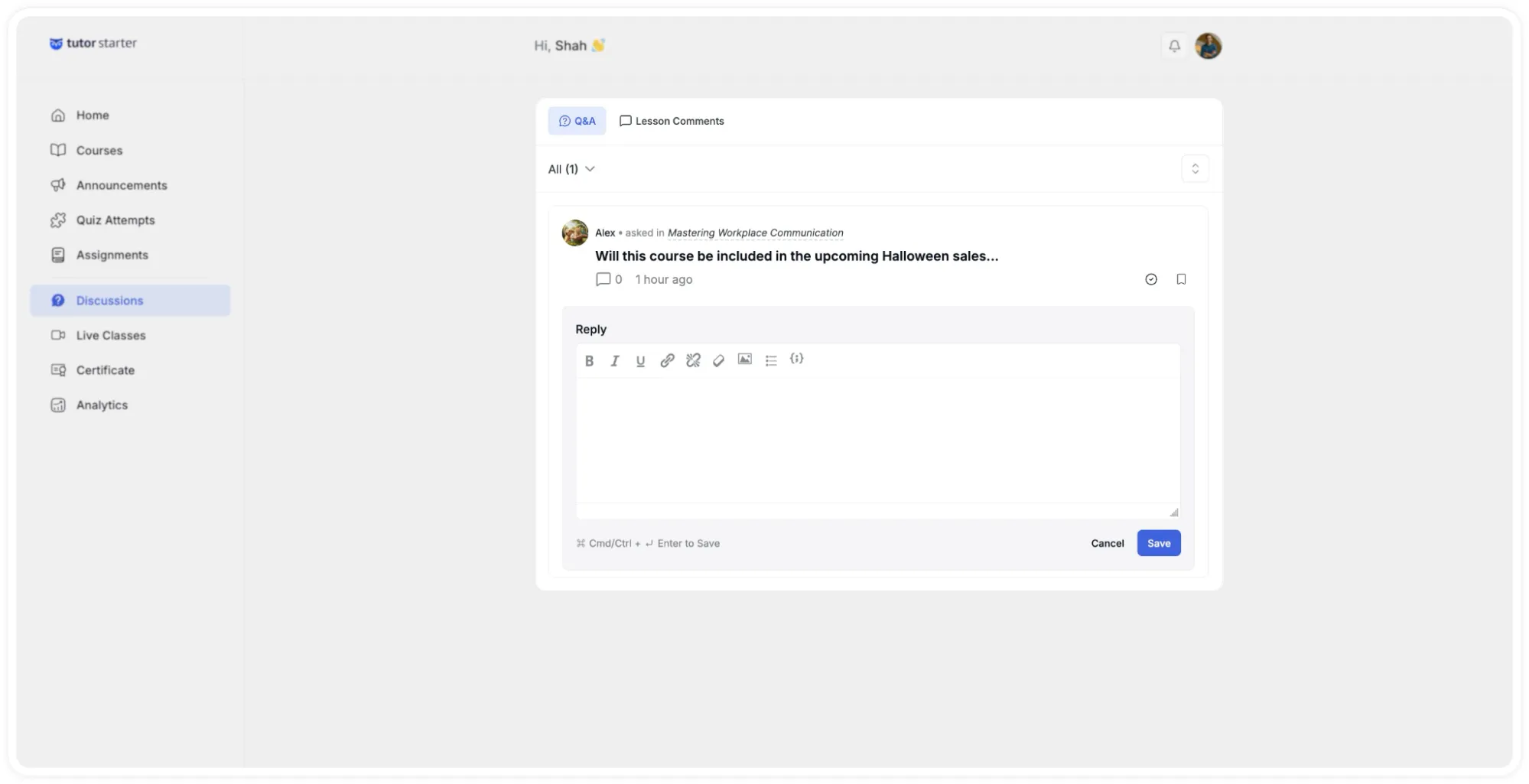
To reply without leaving the Discussions page, click on a comment entry to expand an inline Reply box directly below it. Type your response in the text field and either click Save or use the Cmd/Ctrl + Enter keyboard shortcut to submit.
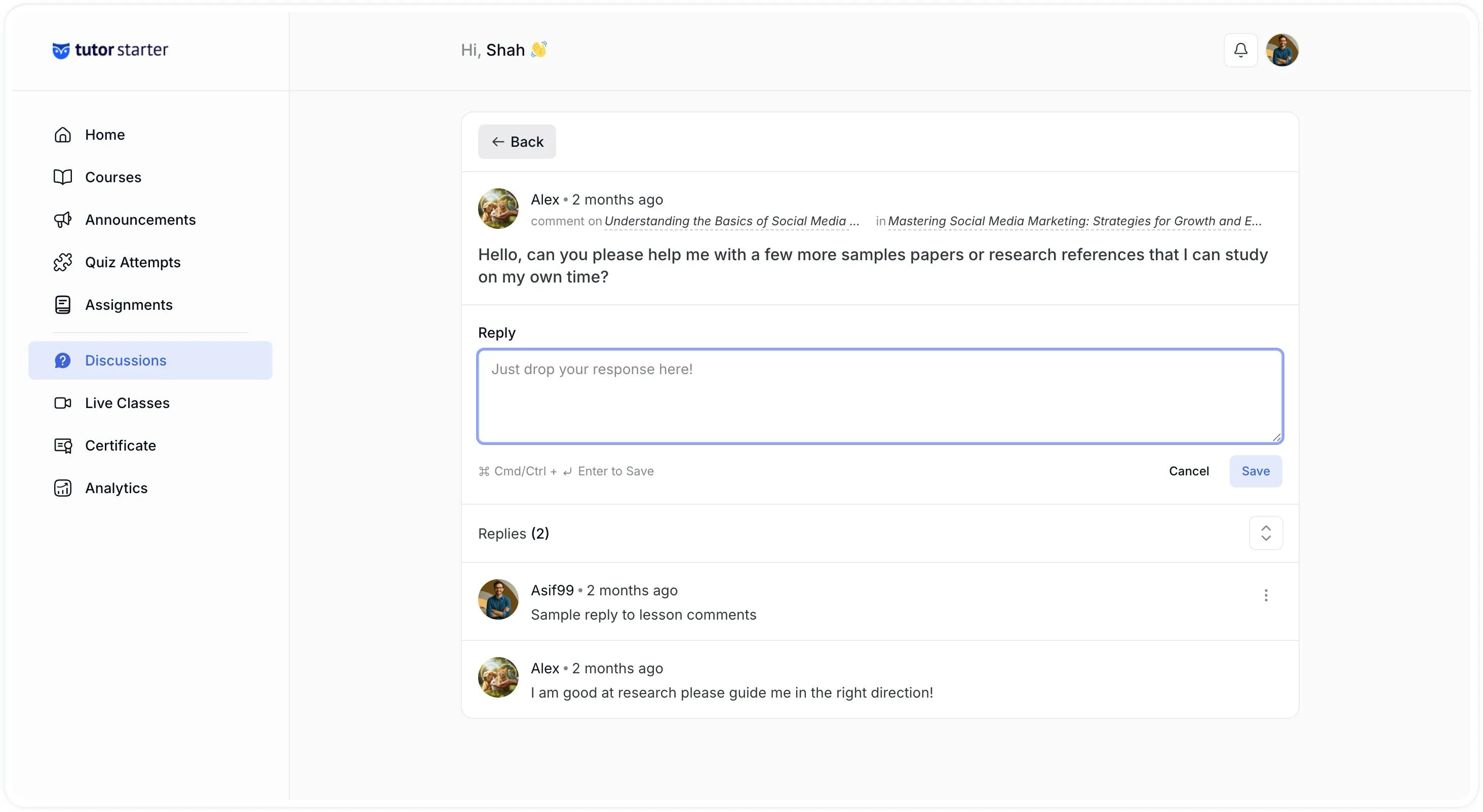
Clicking Cancel closes the reply box without posting anything. This lets you respond to multiple comments quickly without navigating away from the list.
Opening The Full Thread View
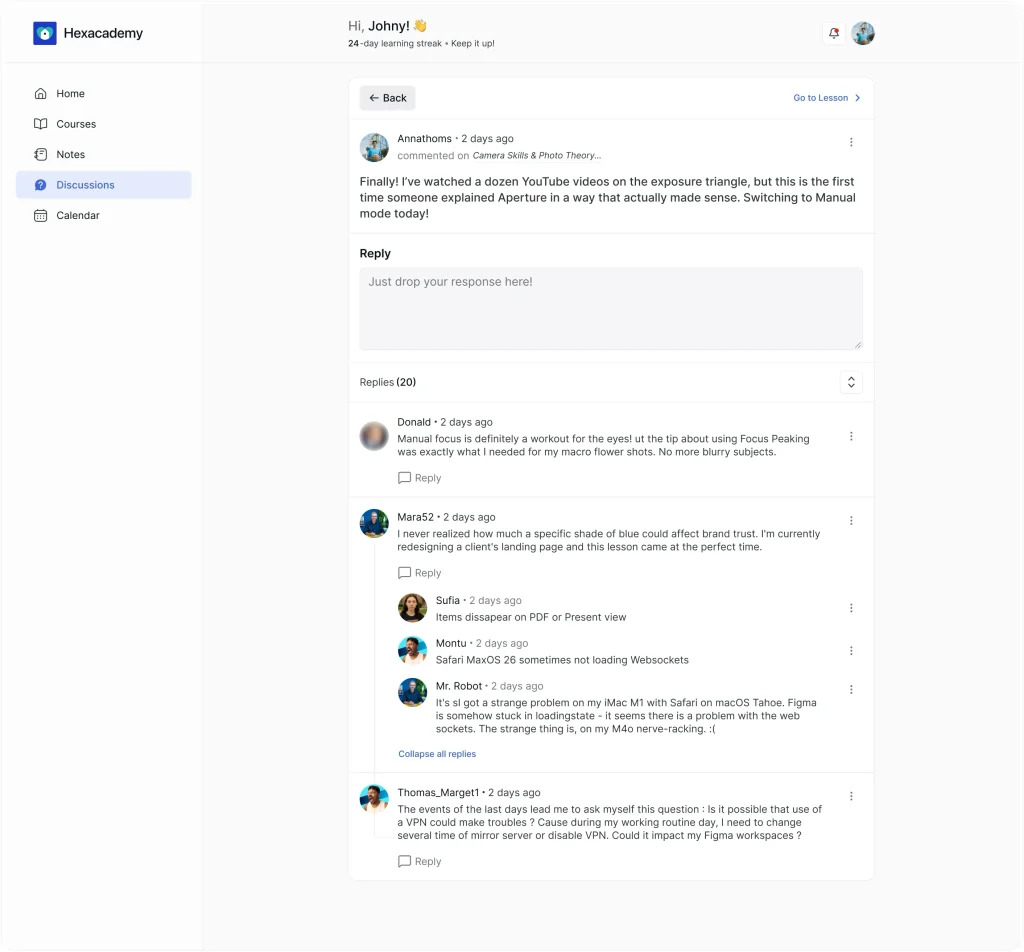
For threads with existing replies, clicking the comment text opens a dedicated thread page. This view shows:
- A Back button at the top to return to the Discussions list
- The original comment with the student’s name, timestamp, and the lesson and course it was posted in
- A Reply text box for submitting your response
- A collapsible Replies section showing all previous replies in the thread, including the name, avatar, and timestamp of each contributor
This full thread view is particularly useful when a conversation has grown beyond a single exchange, and you need to read the full context before responding.
Prerequisite: Enabling Course Q&A
Students can only submit questions if the Q&A feature is active for their specific course. Instructors must configure this setting during the course creation process.
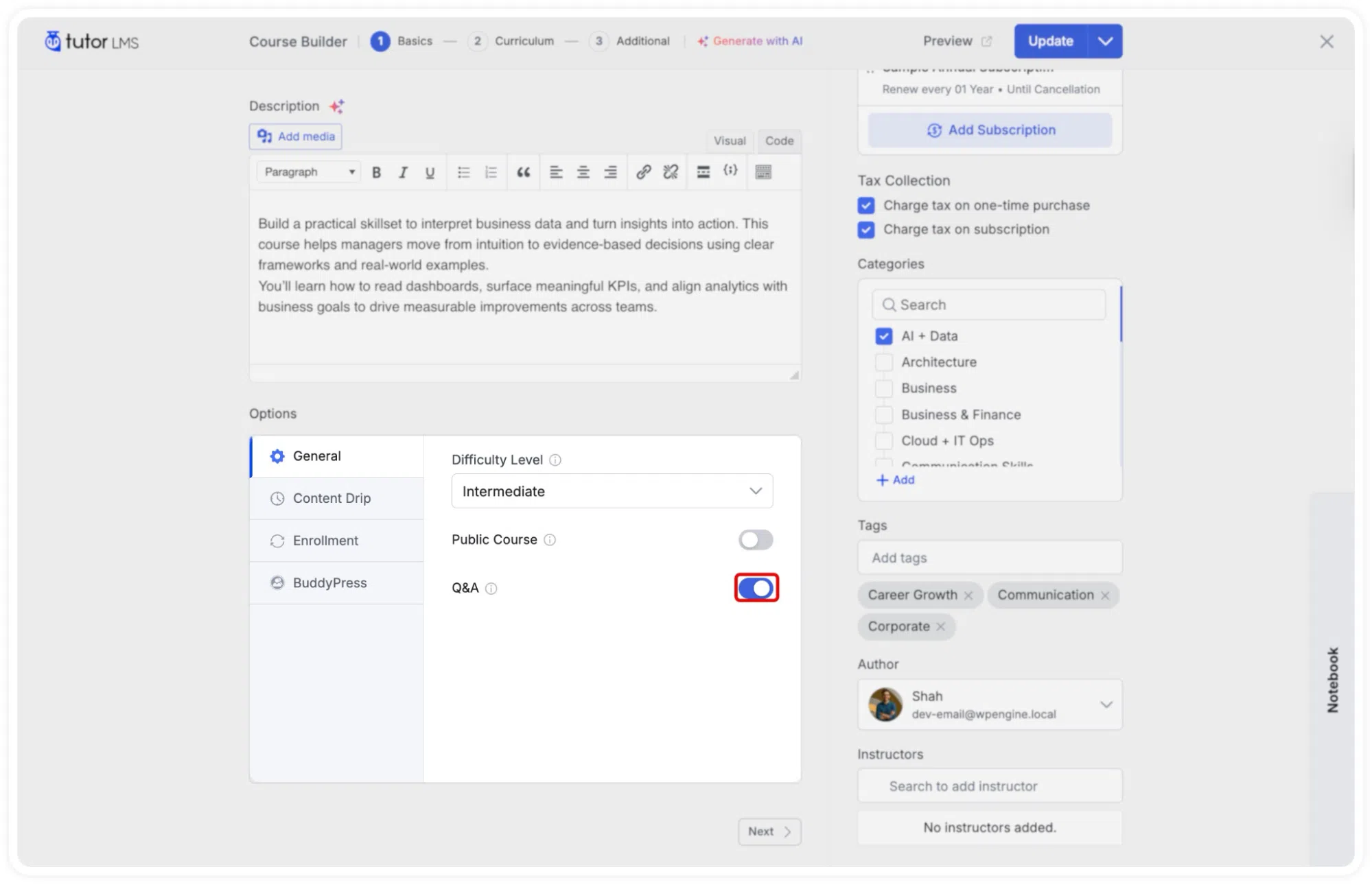
- Navigate to the individual course builder Options>General.
- Locate the specific Q&A toggle option.
- Enable this setting to activate the Q&A tab on the frontend course page.
The Q&A List
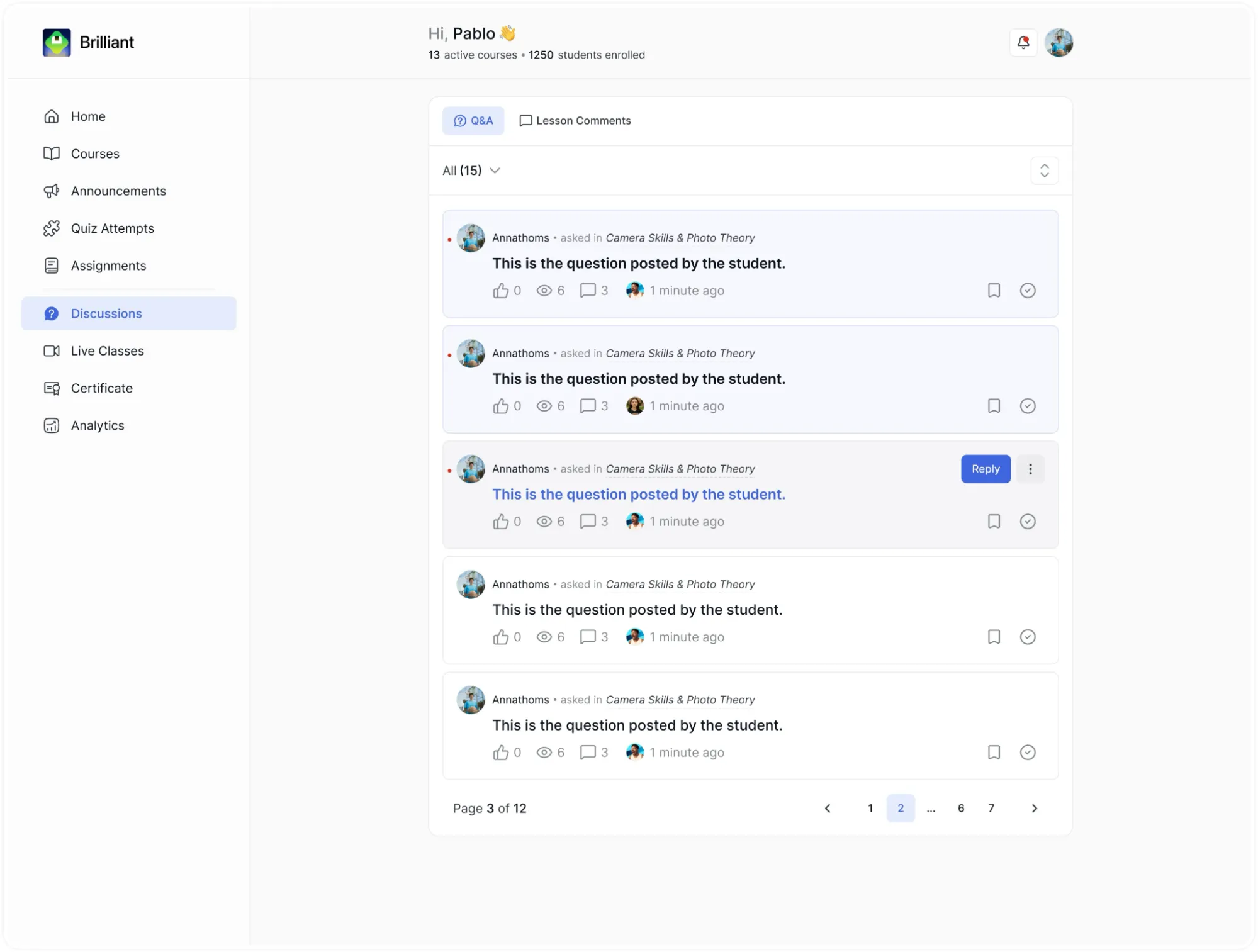
Each entry in the list shows:
- The student’s profile photo and name.
- A description of the action taken, for example, asked in or comment on, followed by the lesson or topic name and the course it belongs to.
- The discussion text or question itself.
- A comment count icon showing how many replies the thread has received so far.
- A timestamp showing how long ago the discussion was posted.
Filtering and Sorting
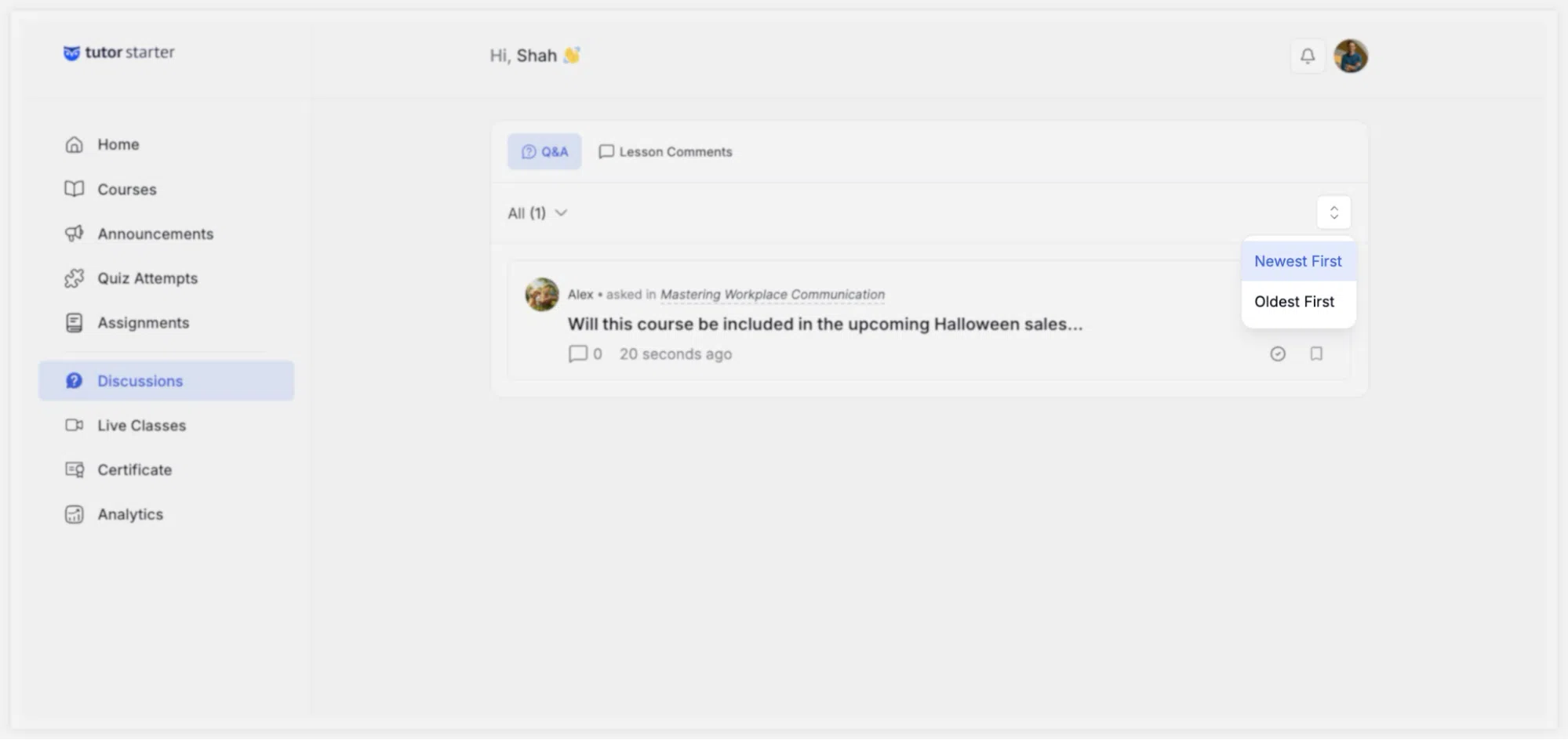
A filter dropdown above the list defaults to showing All discussions. Clicking it reveals options to filter by status, such as Important, allowing you to focus on threads you or the system have flagged for attention.
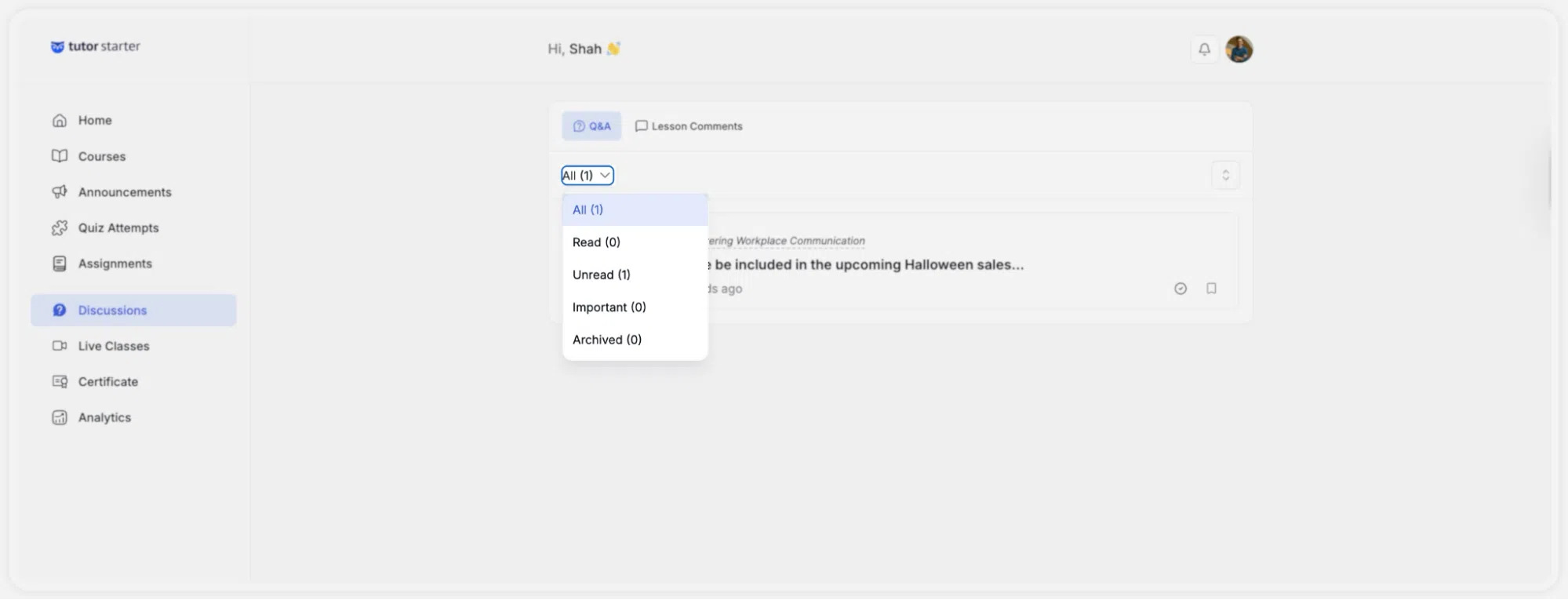
A sort control on the right side of the filter row lets you change the order in which discussions are displayed.
Marking and Responding
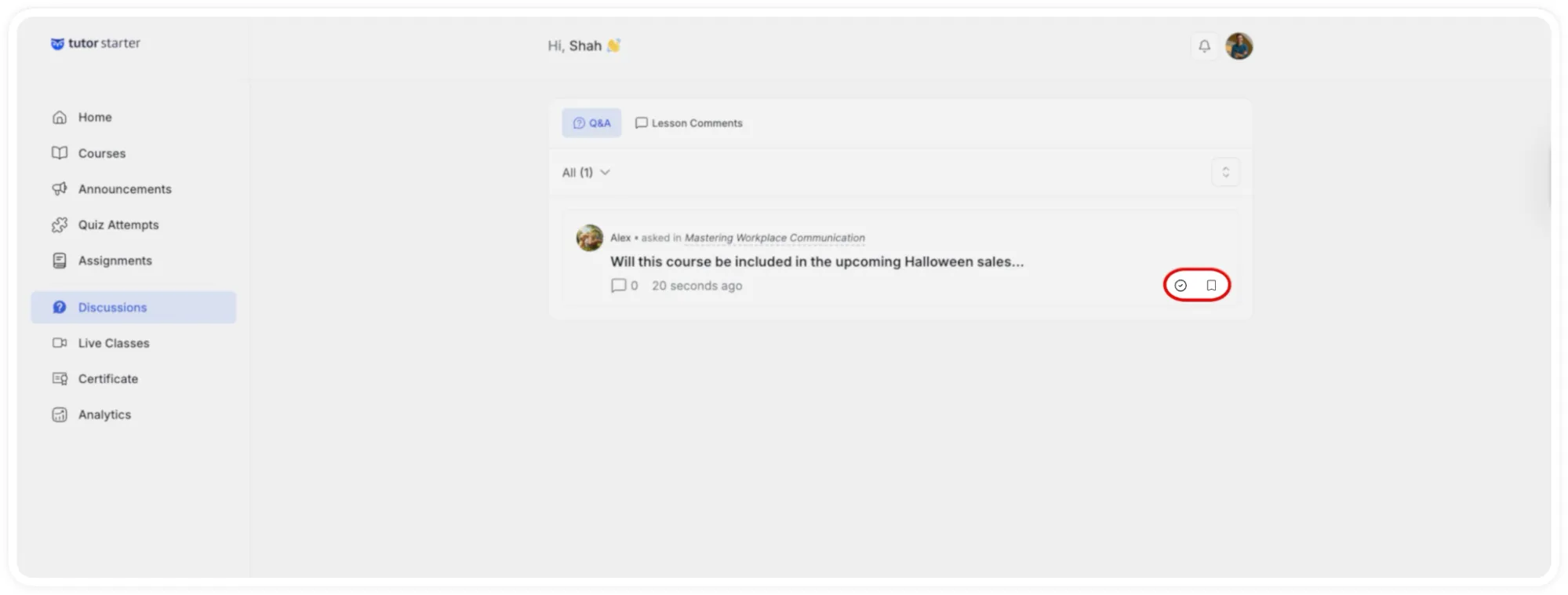
Each discussion entry has two action icons on the right side of the row:
- A clock/archive icon: for marking a thread or managing its status.
- A bookmark icon: for flagging a thread as Important. When hovered, a tooltip confirms the action: “This conversation is important.” Flagged threads can then be filtered to using the Important filter option.
To respond to a student, hover over the comment and click the Reply button or click the discussion text to open the full thread view, then use the Reply box to write and submit your response. Your reply will be visible to the student and any other enrolled students who can see that thread.
Note: The Q&A tab is only visible on a course page if the instructor has enabled the Q&A feature for that course.