The Statements Tab
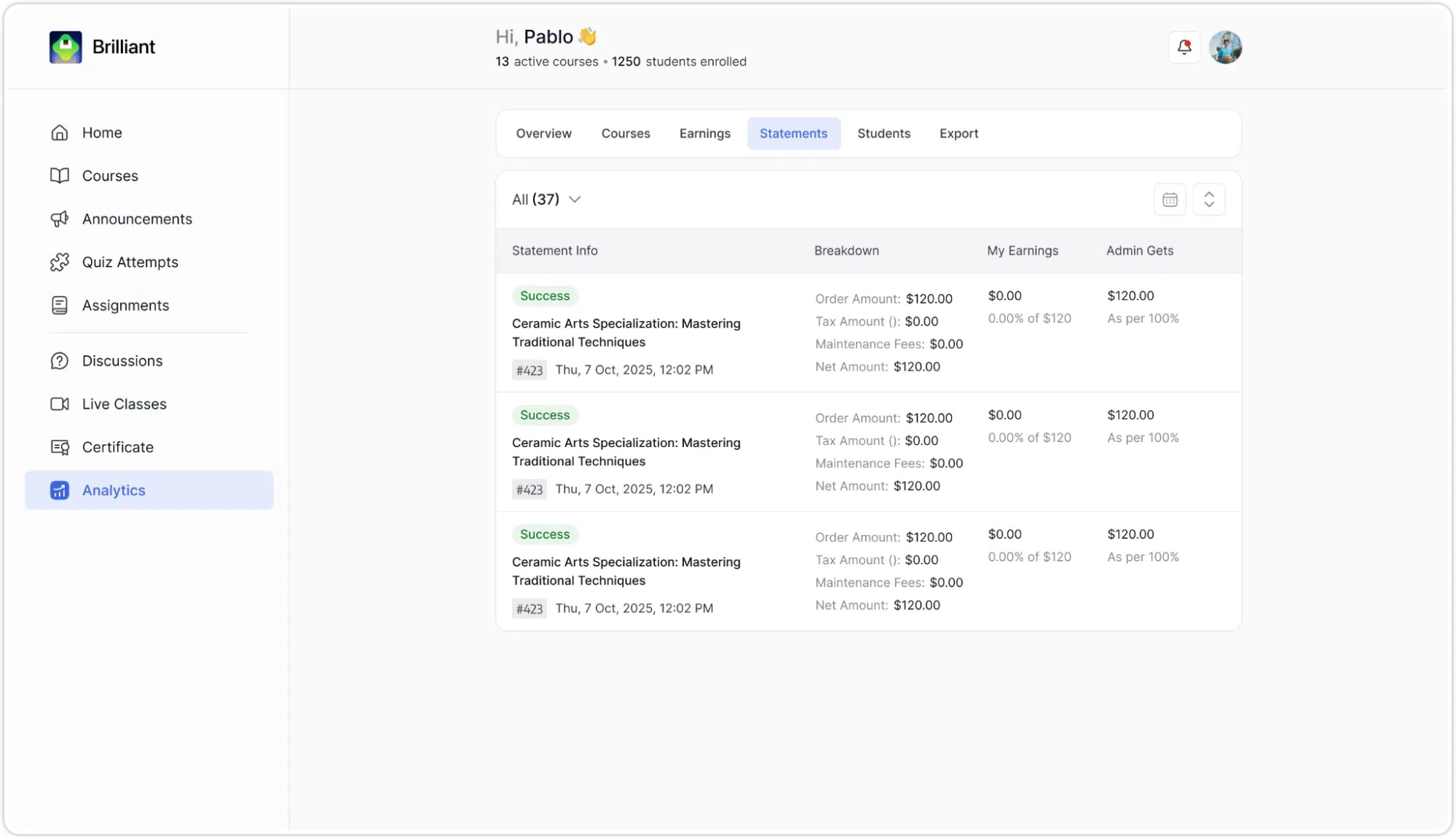
The Statements tab is a full transaction log showing every individual order processed through your account. Each row represents one transaction and is broken into four columns: Statement Info, Breakdown, My Earnings, and Admin Gets.
- Statement Info contains:
- A status badge showing the outcome of the transaction. There are three possible statuses:
- Completed (green): the payment was successfully processed and the enrolment is confirmed.
- Incomplete (grey): the transaction was started but not fully completed.
- Cancelled (red): the order was cancelled.
- The course name associated with the transaction.
- An order number prefixed.
- The date the transaction occurred.
- Breakdown contains the financial detail of the transaction:
- Order Amount: the full amount the student paid.
- Tax Amount (Exclusive): any tax applied to the order.
- Maintenance Fee (Percent): the percentage-based platform maintenance fee deducted.
- Net Amount: the final amount after all deductions.
- My Earnings shows the portion of the Net Amount attributed to you as the instructor, both as a percentage and a dollar value.
- Admin Gets shows the amount that goes to the platform administrator, along with the percentage split.
Filtering the Statements List
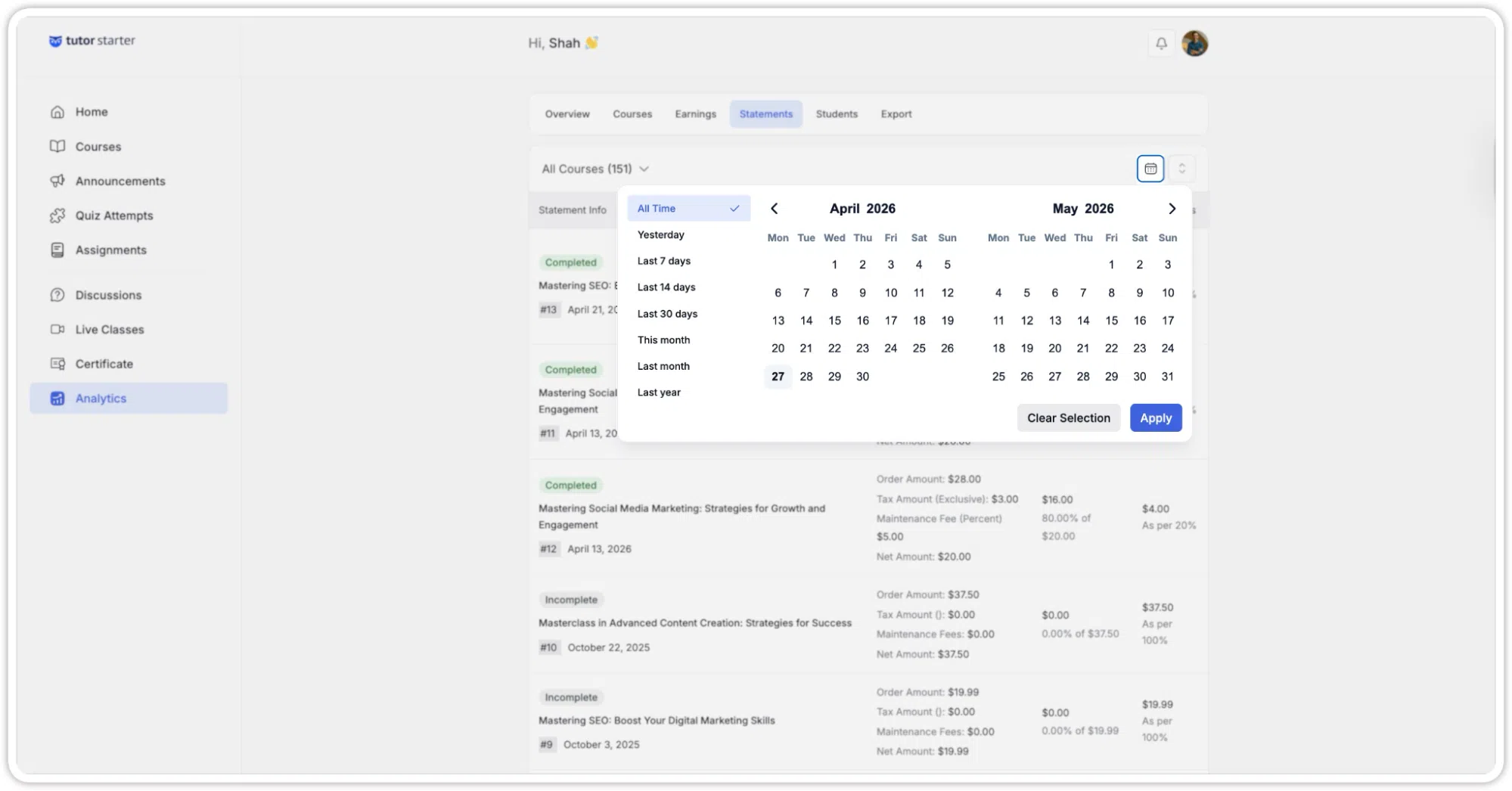
An All Courses dropdown at the top-left lets you filter the statement list to a specific course. The total number of courses count is shown in brackets.
A calendar icon to the right of the course filter opens a date range picker with two calendar months displayed side by side. A dropdown on the left of the calendar offers quick selections: All Time, Yesterday, Last 7 days, Last 14 days, Last 30 days, This month, Last month, and Last year. Selecting a range and clicking Apply filters the statement list to that period only.
The Students Tab
The Students tab lists all students who are enrolled in your courses, showing their registration details and how many of your courses each student has taken.
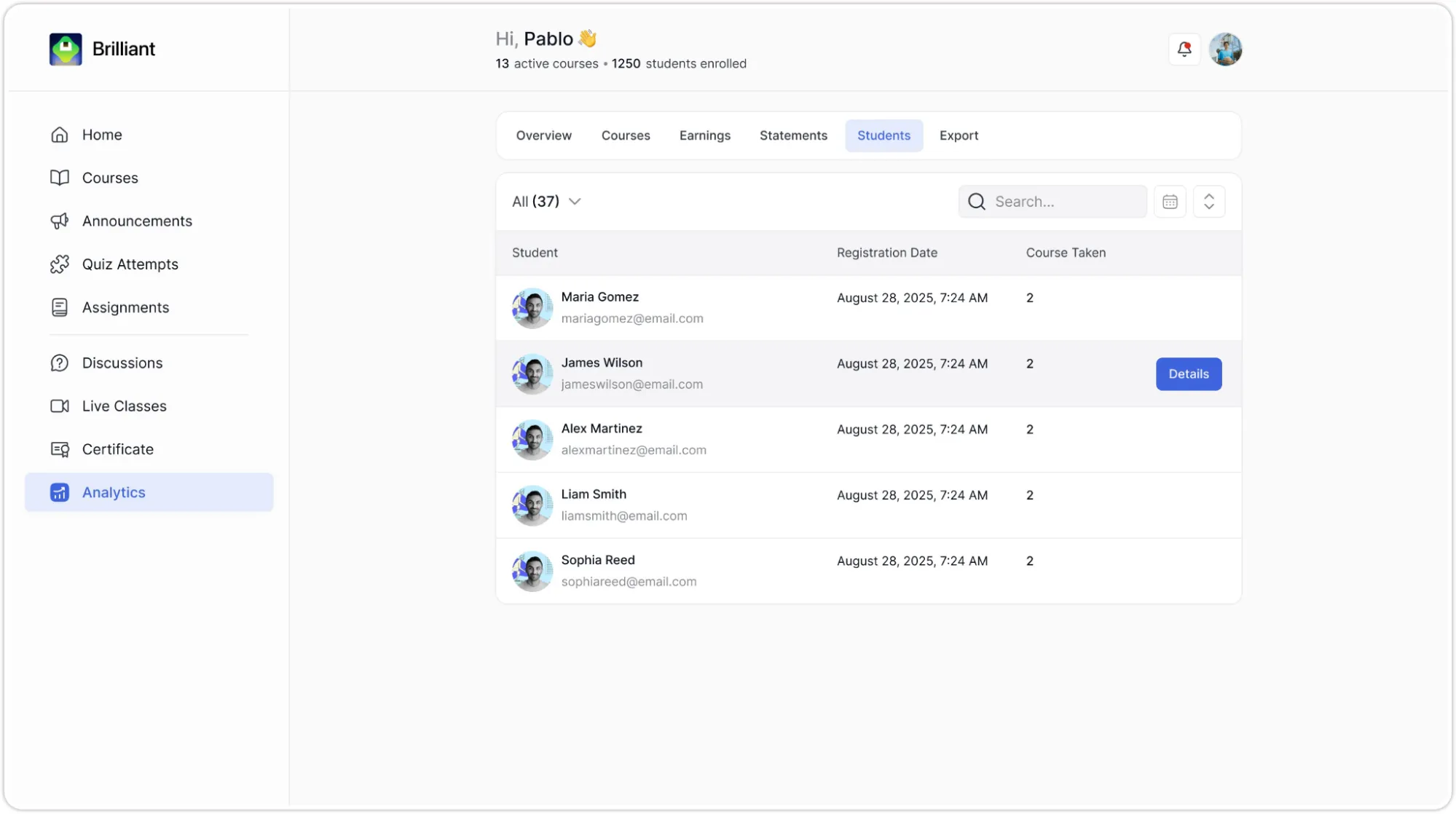
The list is displayed as a table with three columns:
- Statement: The student’s profile photo or initials avatar, their name in bold, and their email address below the name.
- Registration Date: The date and time the student first registered on the platform.
- Course Taken: The number of your courses that student is enrolled in.
An All Courses dropdown at the top-left filters the list to students enrolled in a specific course. A search bar allows you to search by student name or email. A calendar icon filters by registration date range. A sort control changes the display order. A Clear button resets all active filters at once.
A Details button appears on the right side of each student row when hovered. Clicking Details opens a full student profile page.
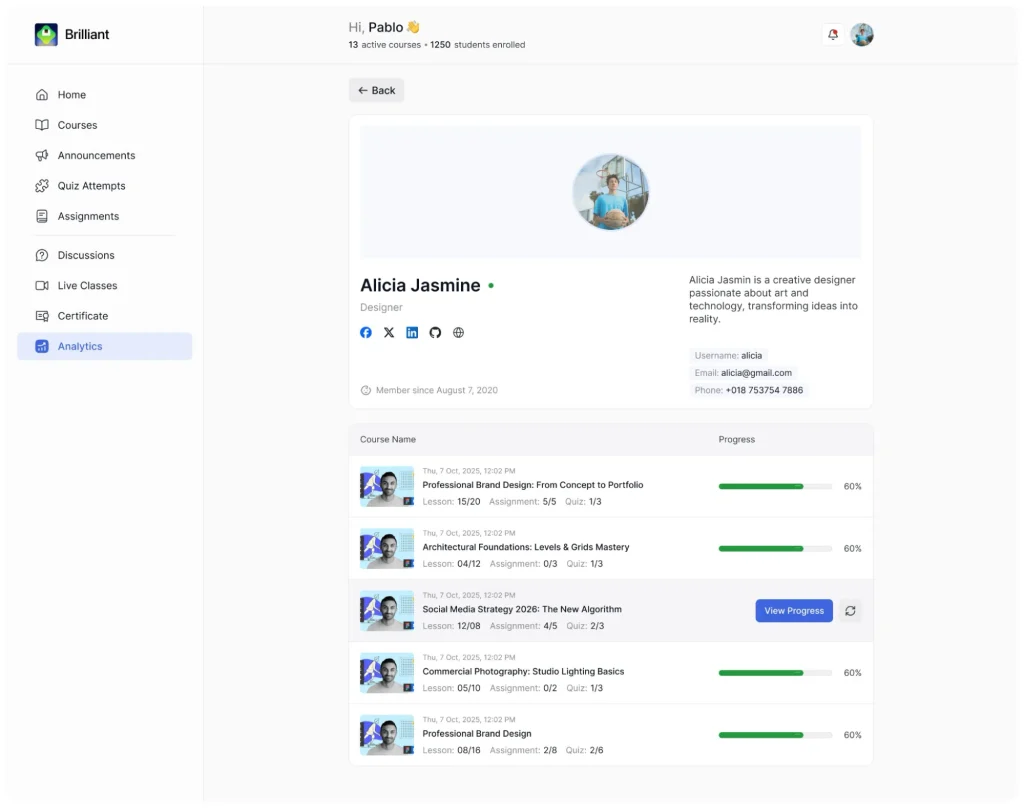
The student detail page displays the student’s profile, including their name, role, social media links, a short bio if one has been added, their Member Since date, and their Username and Email.
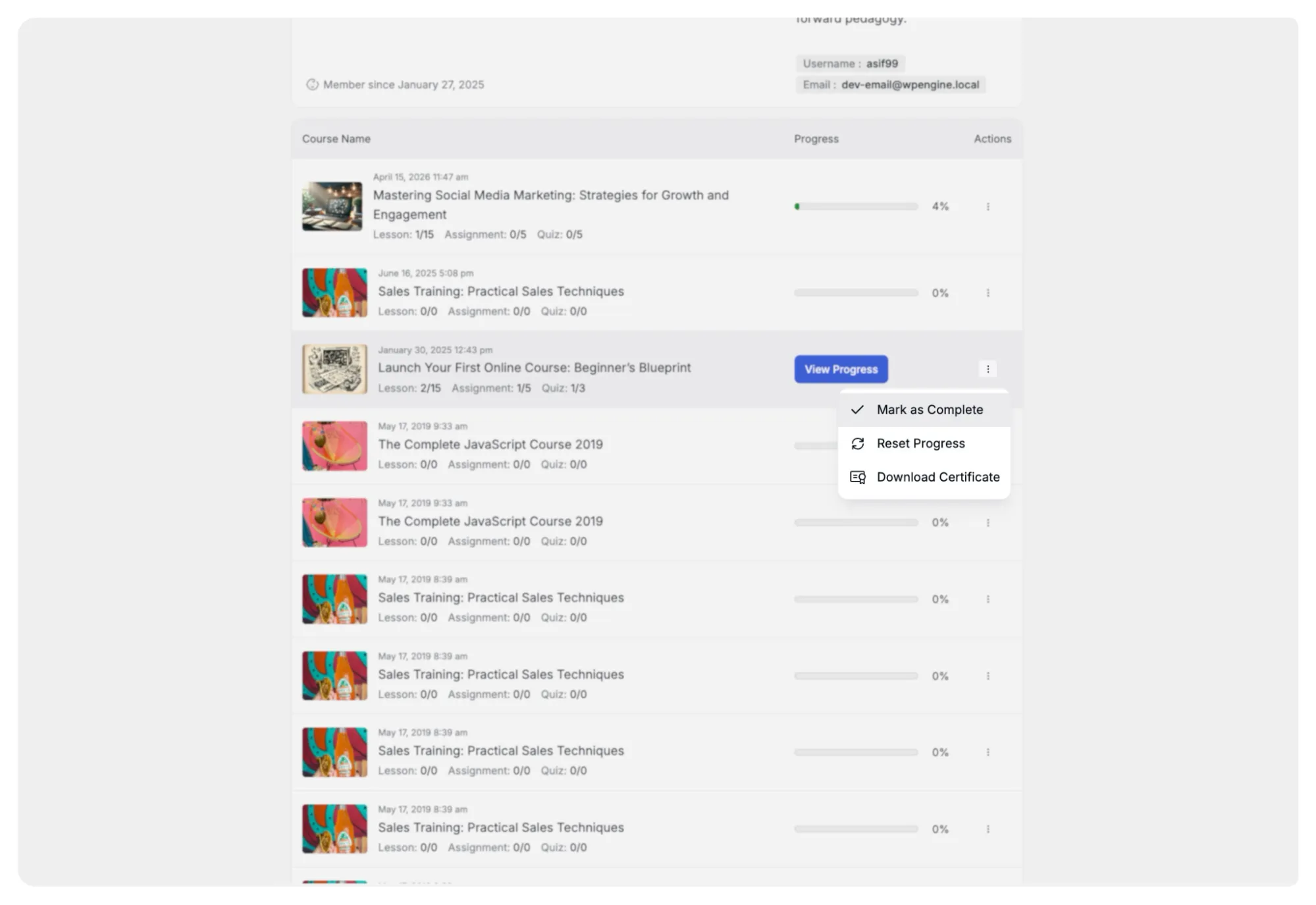
Below the profile, a table lists every course the student is enrolled in, showing:
- The course thumbnail and course name.
- A date and time of enrolment.
- Lesson, Assignment, and Quiz progress counts.
- A Progress bar and percentage.
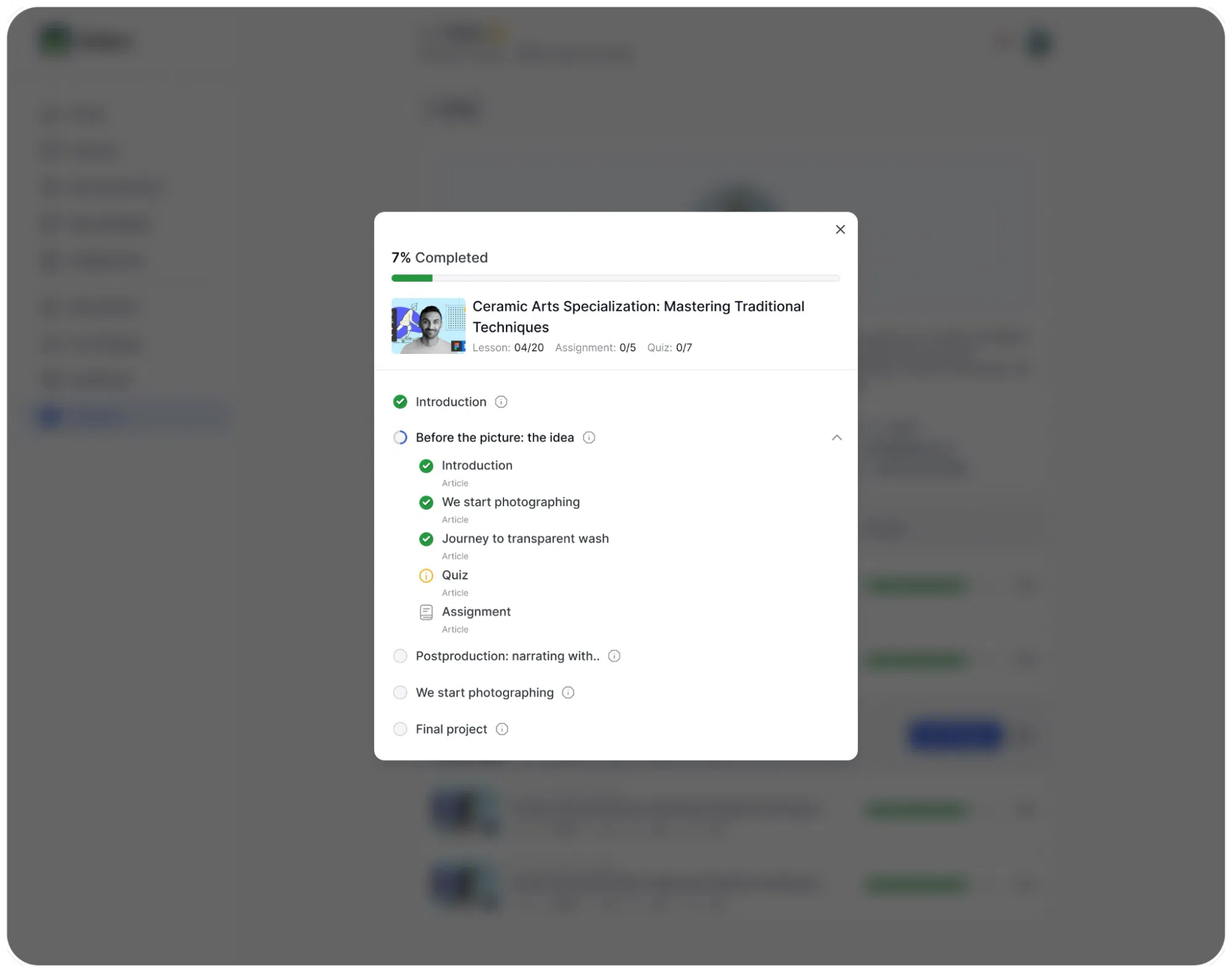
- An Actions column, where a View Progress button appears for courses where the student has started making progress. Clicking the View Progress button opens a summary window showing the lesson modules progressed by the learner.
- A (⋮) three-dot menu also appears on each course row for additional options.
The Export Tab
The Export tab allows you to download a copy of all your analytics data as a file you can open and review outside of the dashboard.
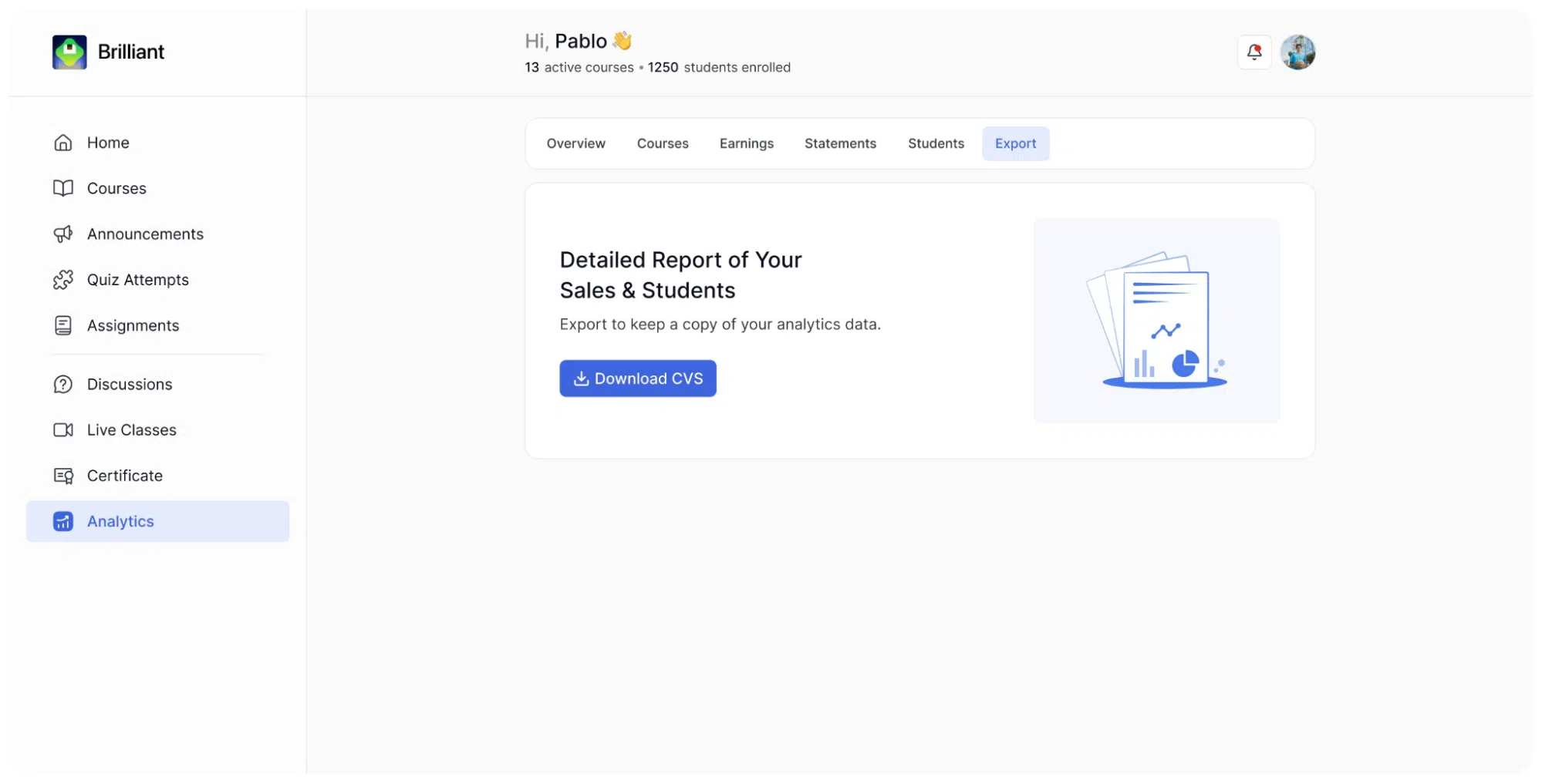
A single Download CSV button is available. Clicking it generates and downloads a file containing your data in CSV format, which can be opened in any spreadsheet application such as Excel or Google Sheets.